
On your phone, the video looks great. Crisp, bright, every detail of the finished job clear. Then you post it and open it in the app, and it looks like it was filmed through a fogged up window. The colors are flat, fine details turn to mush, and dark corners get blocky.
You did not do anything wrong when you filmed it. Something happened between your camera roll and the feed. Usually it is a few settings and habits you have never had a reason to think about, and when you post to several platforms, those habits can blur your video in several places at once.
Every Platform Compresses Your Video
When you upload a video, the platform does not store and serve your file as it is. It compresses it, shrinking the file so it can stream quickly to millions of phones on all kinds of connections. Some detail always gets lost.
How much gets lost depends on what you give them. Upload a clean, high quality file, and the compressed version still looks good. Upload a file that has already been compressed once or twice, and the platform compresses it again on top of that. Each round makes it worse.
This is why some videos look great on one platform and bad on another. The quality of what you upload matters on every single app.
Check The Upload Quality Settings In Each App
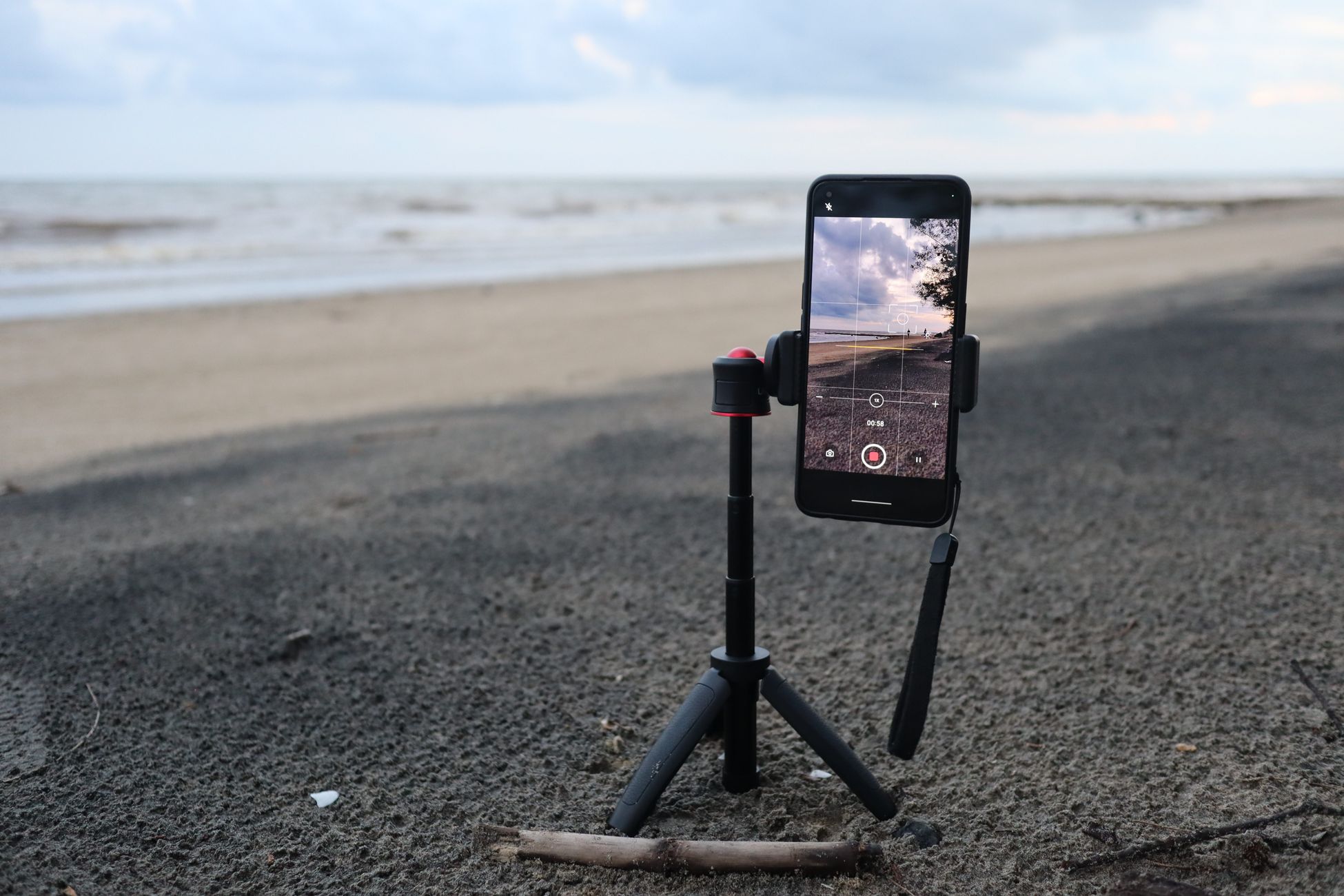
A lot of apps have a setting, buried somewhere, that controls the quality of what you upload. Instagram has an option to upload at the highest quality, which is sometimes off by default to save data. TikTok has a setting to allow high quality uploads. Facebook has a setting to upload video in HD.
If those are off, the app may shrink your video before it even leaves your phone. Go into the settings of each app you post to and look for anything about data use, media quality, or HD uploads. Turn the high quality options on. It is one of the easiest fixes there is, and almost nobody does it.
Stop Downloading From One App To Post On Another
This is the biggest cause of blurry cross posts. Someone posts to TikTok, downloads the video from TikTok, and uploads that download to Instagram, YouTube, and Facebook.
That downloaded file has already been compressed by TikTok. It has TikTok's watermark on it. And now every other platform compresses it again. You end up with a video that looks worse on every platform than the original did, plus a logo that tells the other apps you made it for a competitor.
Always keep the original file, the one straight from your camera or your editing app, and upload that to every platform.
Texting Videos Shrinks Them Too
Another common one: someone on your team films the job and texts you the video. Text messages, especially between different kinds of phones, often shrink video files a lot to make them easier to send. What arrives looks fine in a little text bubble, but it is a fraction of the original quality.
Use a shared folder, a cloud drive, AirDrop, or any method that sends the full file. If the video you are about to post came through a text message, it has probably already lost much of its detail. Email often does the same thing with large attachments.
Edit Once And Export Once
Some videos lose quality before anyone uploads them. A clip gets edited in one app, exported, opened in another app for captions, exported again, and then trimmed in a third. Every export is another round of compression.
Try to do your whole edit in one place and export once. If you need captions, add them in the same editor you cut the video in. And never screen record a video to save it. Screen recordings often come out at a lower resolution than the original, and they capture whatever was on the screen, including buttons and notifications.
Film And Export At The Right Settings
Most phones can film in much higher quality than the platforms need, and that is fine. What matters is what you export after editing.
For vertical video, export at 1080 by 1920. That is the standard for TikTok, Reels, Shorts, and Facebook Reels. Thirty frames per second is safe everywhere. Keep the video vertical if you are posting to vertical feeds, so no platform has to crop it or add black bars.
Avoid exporting at lower resolutions to save space. A 720p export looks noticeably worse after the platform compresses it.
Horizontal Footage Gets Cropped Into A Mess
If you film sideways and post to vertical feeds, the platform has two options: shrink the video into a thin strip with black bars above and below, or crop the middle out and blow it up. Either way, it looks worse. Cropping and enlarging a horizontal clip throws away most of the pixels, so even a sharp original ends up soft.
For anything headed to TikTok, Reels, Shorts, or Facebook Reels, film vertically from the start. Save horizontal for longer videos meant for YouTube and Rumble, where it fills the screen. Phones make it easy to forget, so check the orientation before you hit record.
Light Matters More Than The Camera
Compression is hardest on dark, grainy footage. A video filmed in a dim garage or a dark restaurant has a lot of noise in it, and compression turns that noise into blocky smears.
You do not need professional lighting. Film near a window. Open the garage door. Turn on every light in the room. Bright, evenly lit footage holds up much better after compression on every platform.
Quality Is Part Of Distribution
A blurry video does not just look bad. It performs worse. People scroll past footage that looks low quality, and the platform notices how fast they leave. A video that would have done well looking sharp can flop just because it got muddy on the way up.
When you post to seven platforms, every one of those uploads needs to start from the best file you have. One clean original, uploaded directly to each app with the quality settings on, gives your video the same fair shot everywhere.
Steady Footage Compresses Better
Shaky video is hard for compression to handle. When every frame is different from the last because the camera is moving, the platform has to spend more data just keeping up, and the picture breaks down into blur.
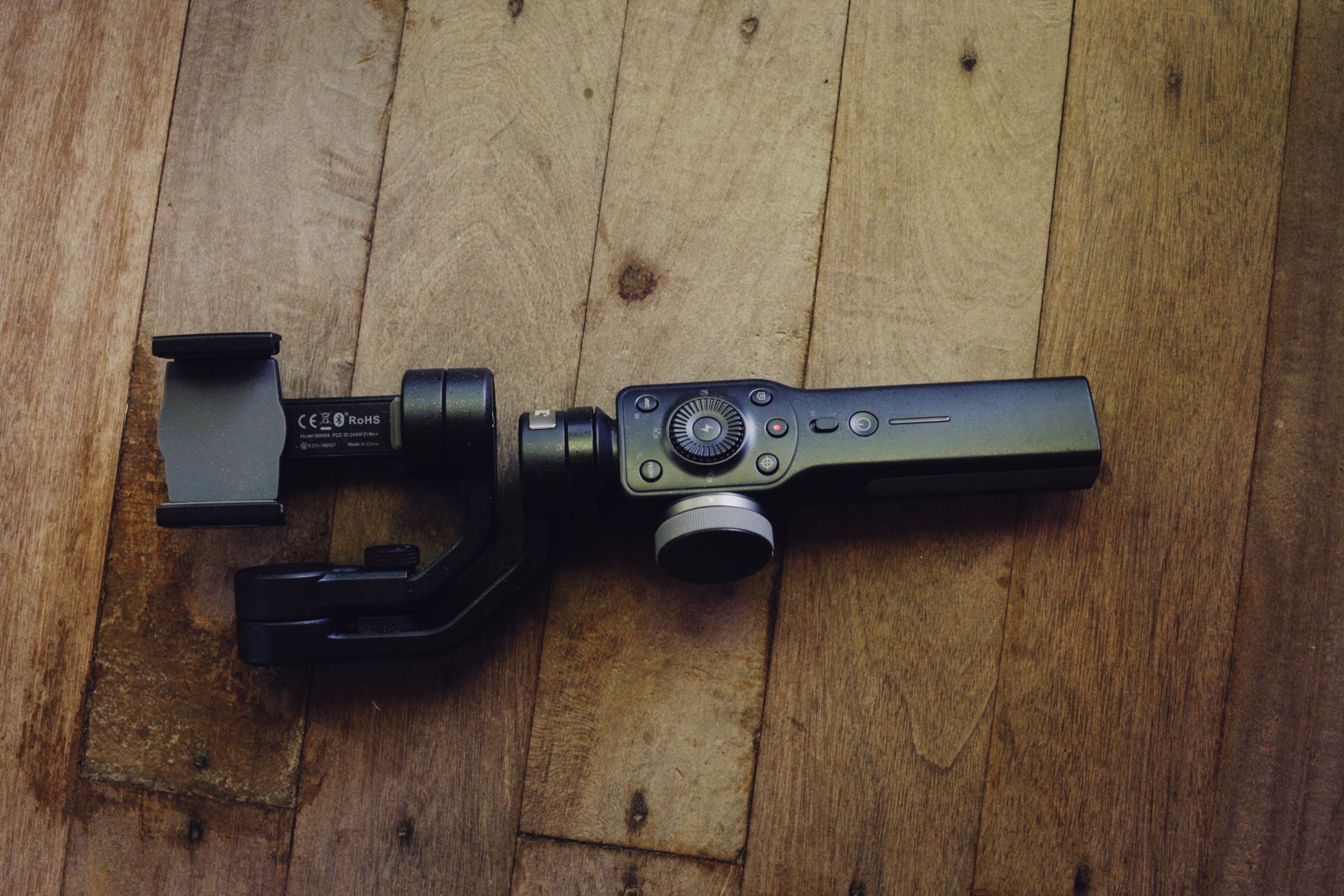
Hold the phone with both hands. Brace your elbows against your body. Lean on a counter or a doorframe. A cheap phone tripod or a small handheld grip costs less than a tank of gas and makes every video look sharper after upload, on every platform. Slow, deliberate movement looks better than quick sweeps, too.
Do A Side By Side Test
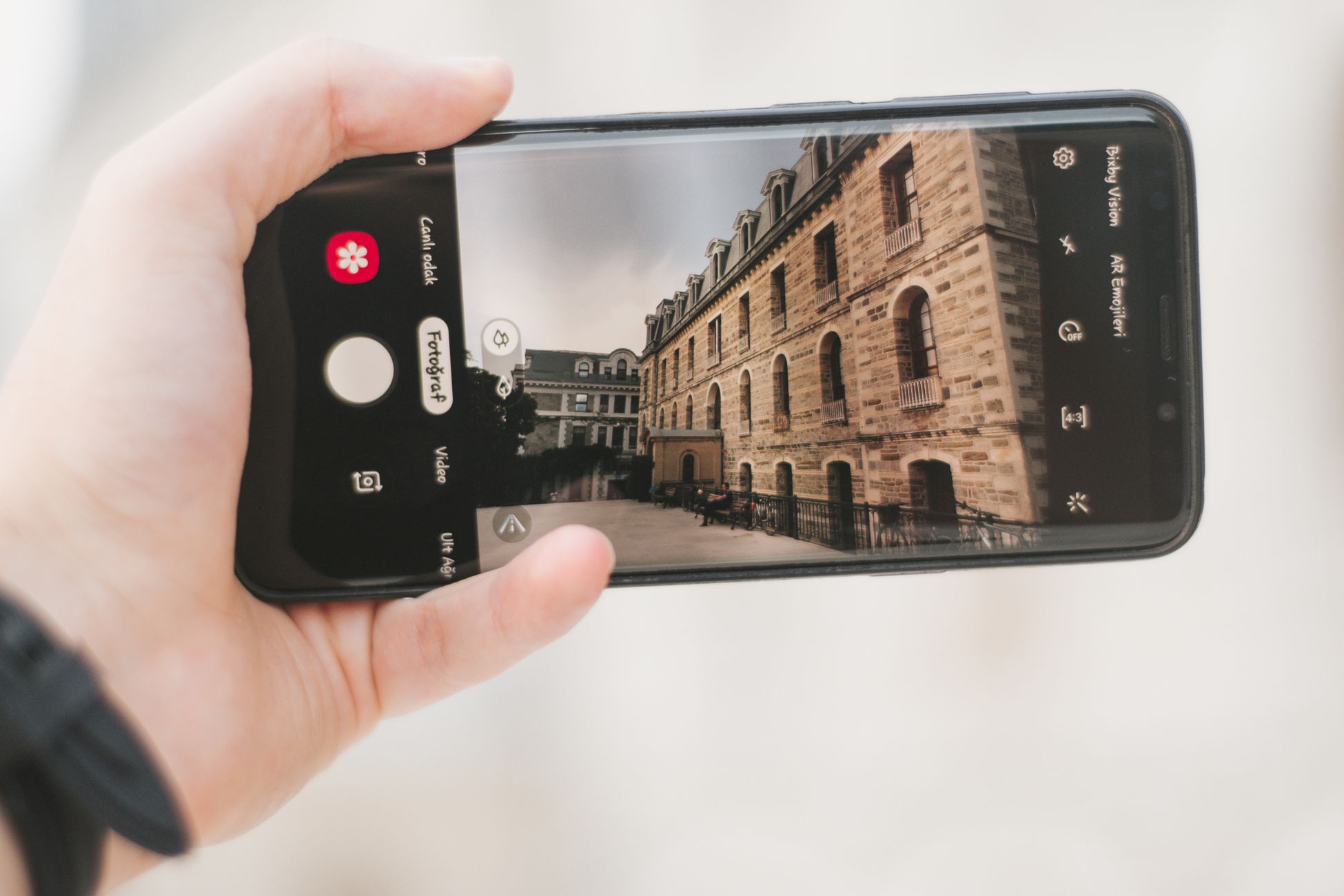
Take your next video and upload the original file to each platform. Then open each version on your phone, inside the app, and compare it with the original in your camera roll.
If one platform looks noticeably worse, check that app's upload settings first. If they all look worse, check how the file got to you and what settings you exported at. Fix it once, and every video after that will look as good in the feed as it does on your phone.
